The No-App Approach to Saving TikTok Clips
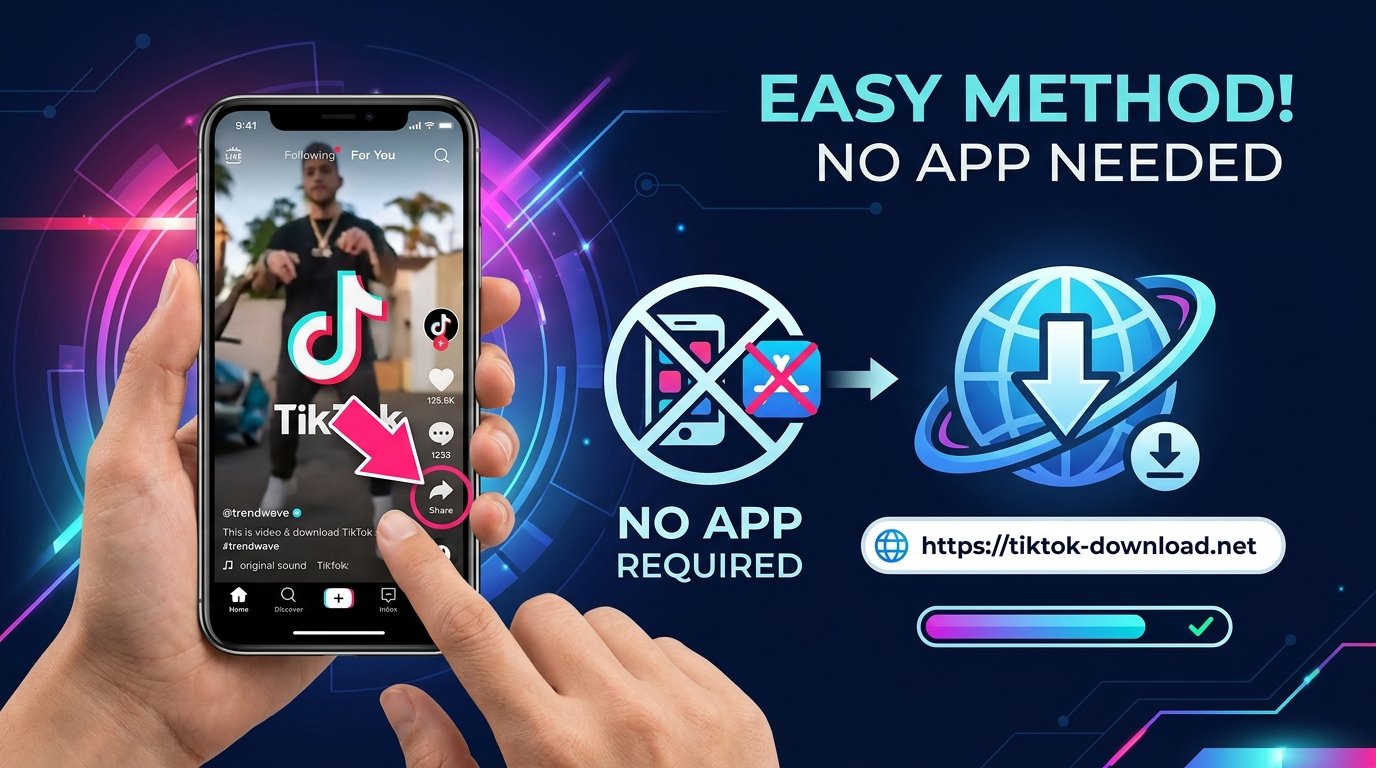
Many users are understandably reluctant to hand download permissions to an unfamiliar third-party app. The good news: you can download TikTok videos on both iPhone and Android using nothing but your phone's browser. No app installation, no permissions, no risk. All processing happens remotely on secure servers.
For iPhone Users (Safari Method)
- Open the TikTok app and copy the video link via the Share button.
- Switch to Safari and navigate to a TikTok downloader website.
- Paste the link and tap Download.
- When the MP4 opens in Safari, tap-and-hold the video thumbnail and select Download Linked File.
- Find the file in the Files app under Downloads, then move it to your Photo Library.
For Android Users (Chrome Method)
- Copy the TikTok video link from the app.
- Open Chrome and visit your preferred TikTok downloader.
- Paste the link, select video quality, and tap Download.
- Chrome's download manager handles everything — the file appears in your Downloads folder instantly.
Why Web-Based Downloaders Are Safer Than Apps
App-based downloaders often request alarming permissions — camera, microphone, contacts, storage. Web-based tools operate entirely within your browser's sandboxed environment. They cannot access your device storage, personal data, or accounts. The only thing transmitted to the server is the TikTok URL you provide.
Common Issues and Fixes
- Video plays but won't save on iOS: Switch from Chrome to Safari and use the tap-and-hold download trick described above.
- Link says "invalid": Make sure you copied the full TikTok share URL starting with https://vm.tiktok.com/ or https://www.tiktok.com/@...
- Download starts but fails: Disable any VPN temporarily — some CDN servers block certain regions.
Conclusion
You don't need another app cluttering your phone to save TikTok videos. A reliable browser-based downloader gets the job done faster, cleaner, and more privately than most dedicated apps on the market.