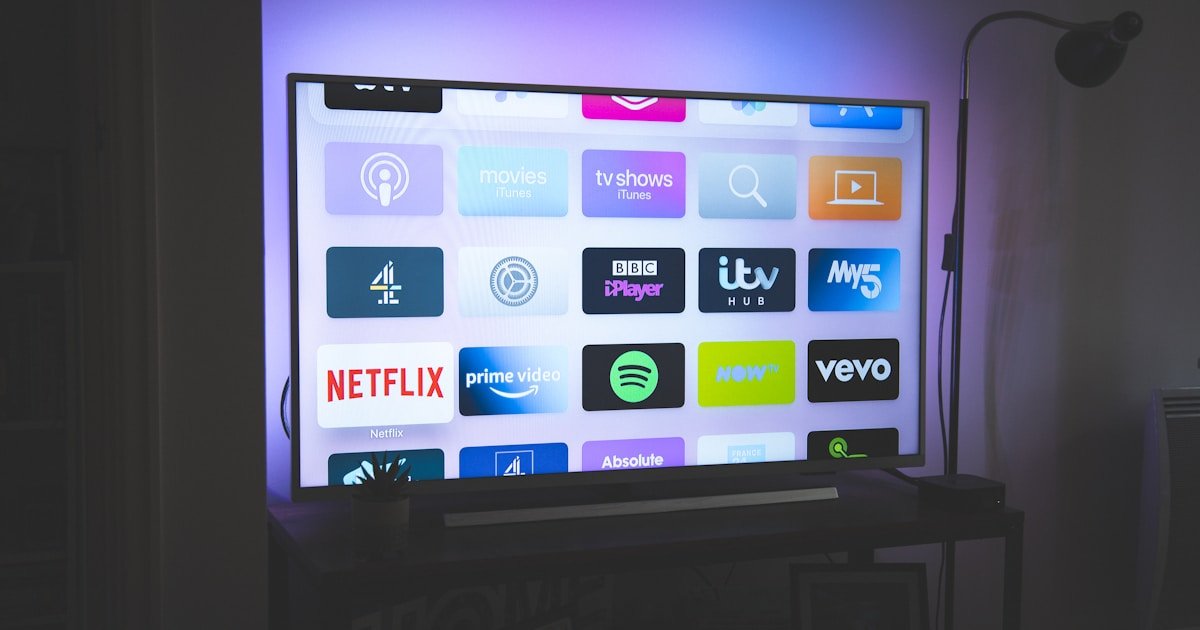
Why Legacy Hardware Struggles with Modern Videos
Modern video downloads often use high-profile HEVC or AV1 codecs, high audio sample rates, and variable bitrates. When transferred to older smart TVs, legacy car dashboard media systems, or older tablets, these files fail to play or display "Unsupported Format" errors.
Essential Conversion Settings for Maximum Legacy Compatibility
1. Container Format
Always convert the file to a standard .MP4 container.
2. Video Codec & Profile
- Codec: H.264 (AVC).
- Profile: Main Profile or Baseline Profile (Level 3.1 or 4.0). Avoid High Profile 10-bit settings.
3. Resolution Restrictions
Downscale videos from 4K or 1080p to standard 720p (1280x720) or 480p SD. Many older hardware processors cannot decode media resolutions above 1080p.
4. Audio Stream Configuration
- Audio Codec: AAC-LC or standard MP3.
- Sample Rate: 44.1 kHz or 48 kHz stereo. Avoid multi-channel 5.1 surround sound tracks.
Conclusion
Converting videos to H.264 Baseline MP4 at 720p guarantees smooth playback on virtually any legacy display or embedded vehicle screen.